Share or receive with NFC
NFC (near-field communication) makes it easy to securely share with sources you trust, without having to type a lot of information or struggle with pairing.
Turn NFC on
- Go to Settings > Connected devices > Connection preferences.
-
Tap NFC and turn it on

If you don't see this option, then your phone doesn't support NFC.
Share content between devices
Share content from your phone to another device by touching the devices together (usually back to back).
- Make sure both devices are unlocked, support NFC, and have NFC and Android Beam turned on.
- Open the screen that contains something you want to share, such as a photo, web page, video, map, or contact.
Touch the back of your phone to the back of the other device.
When the devices connect, they vibrate and you see Tap to beam on your phone.
- Tap your screen to share the content.
Read NFC tags on posters and signs
Receive web links, e-coupons, brochures, maps, and more from an NFC tag. Look for the NFC logo on NFC-enabled accessories, posters, signs and store displays. Just touch the back of your phone to within 2 cm of the logo to receive its tag information.

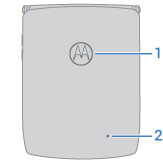
- NFC touchpoint for sharing content or paying with your phone
- Microphone
Enable NFC icon in status bar
To know whether NFC is on by glancing at your status bar:
- Go to Settings > Connected devices.
- Turn NFC icon on
When NFC is on, you'll see 
Turn NFC off
Go to Settings > Connected devices > Connection preferences and turn NFC off 