About photo and video modes
Photo modes
The Photos mode is point and shoot. Just frame your shot and capture what's in front of you.
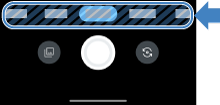
Or, swipe sideways and select a mode before shooting.
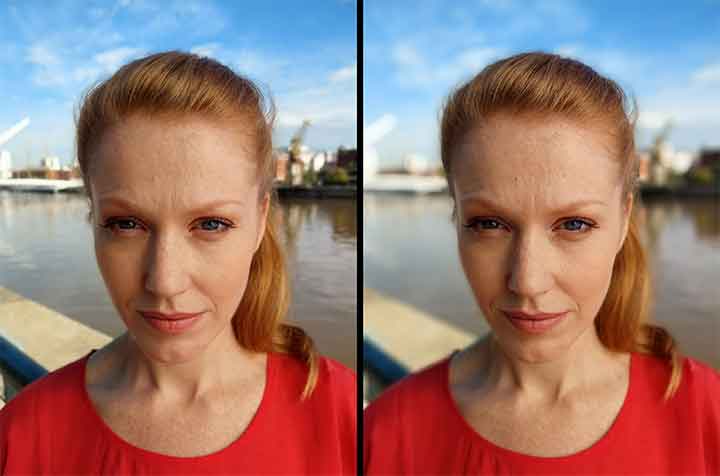
- Portrait

Keep your subject in focus and blur the surrounding scene as little or much as you like. Learn how.
- Spot Color

Choose one color and turn the rest of the photo black and white. Learn how.

- Group Selfie

- Take a wide, panoramic selfie. Learn how.
- Night Vision

Use this mode in low light conditions to bring details out of the dark, capturing vivid photos with more accurate colors. Learn how.

- Panorama

-
Pan to capture the whole scene. Learn how.

- Ultra-Res

- Capture photos with the highest resolution for the most detail possible. Learn how.
- Pro

For all modes listed above, your phone digitally processes the images. To bypass this digital processing and control settings such as ISO or macro focus, use Pro mode. Learn how.
- Dual Capture

- Take a photo using two cameras (selfie + one of the rear cameras). Learn how.
Video modes
For standard video, just tap Video and start recording.
Or, to include visual effects, swipe sideways and select any of these modes before recording.
- Spot Color

- Choose one color and turn the rest of the video black and white. Switch colors while you’re recording. Learn how.
- Dual Capture Video

- Record one video using two cameras: selfie + one of the rear cameras. Learn how.
- Slow Motion

Take a video, then select a portion to play in slow-motion. You can adjust this any time you play the video. Learn how.
- Timelapse

Make time appear to be moving faster. This mode works well for mostly static scenes that change slowly, like a flower opening, or have motion in one area, like traffic. You select the speed before recording the video and can’t adjust it afterwards. Learn how.
Add or remove modes
Commonly used modes are in a carousel at the bottom of the screen. You can add, remove, or reposition modes any time (except for Photo and Video modes, which can't be removed).
- On the

- Tap

Arrange modes:
- To add one, drag it to the carousel in the order you want.
- To remove one, drag it up, out of the carousel.
- To rearrange the carousel, drag and move the mode.
- Tap Done.
To reset the carousel to the default set of modes, swipe to More and tap 
Quickly open popular modes
You can open the Camera app directly to certain modes with one tap. Just add a shortcut to your home screen.
To add a shortcut:
Touch & hold
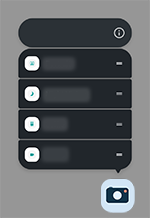
- Drag a shortcut for one of the modes to a blank space on your home screen.
Then tap the shortcut to open the Camera in that mode.
Other camera questions
To learn about other camera features, tap 

To learn how to take screenshots, open the Settings app, tap Help and search