Transfer files between phone and computer (USB)
You can transfer music, photos, and other files between your phone's storage and computer (in either direction). Use a USB cable that's capable of data transfer and isn't for charging only.
When you connect the phone and computer with the USB cable, the phone’s USB connection type is set to charging mode, which charges your battery but prevents your computer from seeing files on your phone. Before transferring files, change the USB connection type to allow transfer of:
- Any type of file
- Only photos and videos
Connect phone to transfer files
With the phone and computer turned on, connect the phone and computer with a USB cable.
- Unlock the phone.
Change the USB connection type to allow file transfers:
Swipe down from the top of your home screen and touch the USB for charging notification.
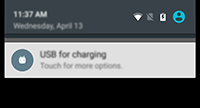
To transfer any type of file, touch Transfer files (MTP).
Or, to transfer only photos and videos, touch Transfer photos (PTP).
Transfer files
On a Windows computer:
Ensure the phone is properly connected to the computer using the steps above.
If you don't unlock the phone and change the USB connection to allow file transfers, you won't see any files on your phone.
When connected, the “Windows device options” screen opens on your computer.
Select Open device to view files.
File Explorer opens, showing your phone’s storage
TipIf you don't see the “Windows device options” screen or if File Explorer doesn't open, look in your computer's icon tray for a flashing icon. Click it and select Open device to view files.- If you selected Transfer photos (PTP) when you connected the phone, then in File Explorer choose whether to import pictures and videos automatically or manually.
- Open a second File Explorer window to see your computer folders.
- Navigate to the folders or files to transfer, then drag and drop them to and from the open phone storage and computer folders.
On a Mac:
Ensure the phone is properly connected to the computer using the steps above.
If you don't unlock the phone and change the USB connection to allow file transfers, you won't see any files on your phone.
- On your computer, download the Android File Transfer application from www.android.com/filetransfer and follow the onscreen instructions.
Location of files
Files are stored in these folders on your phone:
- DCIM (Digital Camera Images): Photos and videos taken with the Camera app
- Pictures: Images from apps other than Camera
- Download: Files downloaded from the internet
- Music: Files for apps that play music
- Ringtones: Sound files for ringtones
- Notifications: Sound files for notifications
- Alarms: Sound files for alarms
Fix a problem
If you’re having problems, try these troubleshooting steps.