Foldable display
Customize the task bar
The task bar lets you access other apps when you’re using an app and your phone is unfolded. It never appears when your phone is closed.

Control when it appears
You can control whether it appears when your phone is unfolded:
- Go to Settings > Foldable display.
Tap Task bar and adjust settings:
- To turn it off, select Not show.
- To always see the task bar when you’re using an app, select Always show.
- If you’re using Gesture navigation, you can hide the task bar and only have it appear when you drag up from the navigation bar. Select Show by gesture.
Change how it looks
- Go to Settings > Foldable display.
Adjust settings:
- Your most recent apps are included. To remove them and see only the apps in your Favorites tray, turn Show recent apps off

- If you're using 3-button navigation, those icons app appear on the task bar. To swap their order, tap 3-button navigation position and select Reverse.
- Your most recent apps are included. To remove them and see only the apps in your Favorites tray, turn Show recent apps off
Enable/disable Laptop mode
Fold your phone for a laptop-like experience with an app on the top screen, and controls on the bottom screen.
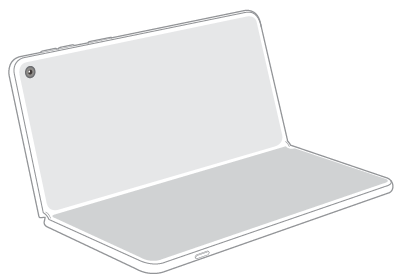
When you fold your phone in this configuration, if you’d prefer for the app to wrap onto the bottom screen instead, then turn off Laptop mode.
- Go to Settings > Foldable display.
- Tap Laptop mode.
To see a touchpad and keyboard on the bottom screen when folded, keep it on .
To wrap the app onto the bottom screen, turn it off
Enable/disable Desk display
Lock your phone, then fold it into a tent and set it on your desk or bedside-table as a clock or music player.
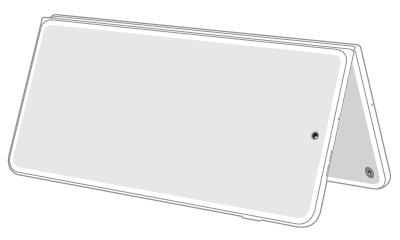
To enable/disable this feature:
- Go to Settings > Foldable display > Desk display.
Turn Use desk display on

If you turn it off, then your screen stays dark if you fold it into a tent. This saves battery life but removes features.
Change layout and clock style
To change what’s on the display when you’re not playing music:
- Go to Settings > Foldable display > Desk display.
Choose the layout:
For a calendar and clock and icons when you receive notifications, choose Dashboard.
For a calendar and clock, choose Dashboard and turn Show notification off
To see only a clock, choose Classic.
- Choose a clock style.
Control notifications
Your choice of layout determines whether you see notifications or not.
If you’re using Dashboard and have Show notification on
Add art to your music player
You can display album art on the Desk display when you're playing music.
Turn Show album cover when playing music on
To see your clock, even when playing music, turn Show album cover when playing music off
Change what happens when you fold phone
When you fold your phone, you can continue using apps without interruption, because the same app will appear on the external display, sized down to fit that screen.
To change what happens when you close the phone:
- Go to Settings > Foldable display.
Tap App continuity and adjust settings:
- For some privacy, choose Swipe up to continue. When you close your phone, you’ll see the lock screen. You can either swipe up to continue in the app, or you can wait and your phone will lock.
- For maximum privacy, choose Never continue. When you close your phone, it will lock.
If you want the smoothest transition from main screen to the external display when using an app, keep App continuity set to Always continue.