Use the stylus
Remove stylus
Press the end of the stylus in to release it, then slide it out of the phone.
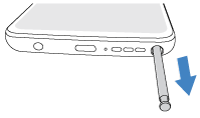
If your screen was locked, Moto Note will open so you can quickly jot a note without unlocking. If your screen was unlocked, you’ll see the stylus menu open where you can tap 
To keep track of your stylus:
- Be sure to turn on Last known location so you'll be able to see when and where you last removed the stylus.
- To get a notification if the stylus has been out and unused for a while, so you don’t forget it, turn on Stylus out of case.
Use the stylus menu
When you remove the stylus from your unlocked phone, the stylus menu appears, giving you quick access to tools.
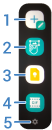
- Open the app by tapping its shortcut. Touch & hold to change the shortcut.
- Open Coloring book.
- Create a new multimedia note.
- Take a screenshot.
- Open your camera to create a cinemagraph.
- Create an animated message.
- Change these shortcuts.
If you tap anywhere on the screen, the stylus menu shrinks to a bubble 

If you don’t want the menu when you remove the stylus, you can turn the menu off.
If you want the stylus menu but don't see it or
Handwrite your text
In any app where you would type, you can handwrite with your stylus instead.
Tap a text field where you want to write. Then you can either:
- Write directly in the text field, with shortcuts to help you in the small space.
- Switch to a larger writing field at the bottom of the screen.
It’s easy and useful to switch between these modes. For example, write in the larger field and switch back to the text field to delete or edit.
Write in a small text field
You'll see this control bar:

If you don't see the control bar when you tap a text field with the stylus, go to Settings > Stylus > Stylus Writing and turn it on 
Use it to:
 | Insert a space |
 | Backspace |
 | Start a new paragraph |
 | Switch to the larger writing field |
 | Switch between languages if you have multiple languages |
 | Create an animated message (appears only when you're in a messaging app) |
 | Enter (start a search, submit a form, etc.) |
Edit in a text field
- Draw a wavy line through words to delete them
- Circle words to select them and see more editing options
- Draw a vertical line between characters to add or remove a space between them
If you want a larger writing area
- Be sure to add the handwriting keyboard for your language.
- Tap
- On the keyboard, tap

- Start writing in the large area at the bottom of the screen.
To switch back to the text field, just tap it.