About your home screen
You see the home screen when you turn on and unlock your phone.
Swipe right or left to move between home screens.
What’s on the screen
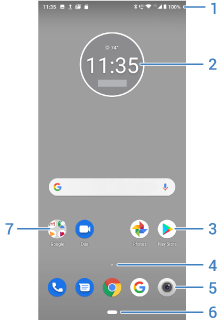
- Status bar: Displays the time and icons that tell you about your phone's battery and network connections. Swipe down to see your notifications and quick settings.
- Widget: You can add widgets to your home screen for quick access to information or frequent tasks.
- Shortcut: You can add shortcuts to open apps or web pages you use frequently.
- App tray: Swipe
 up from the bottom of the screen to see the list of all your apps.
 - Favorites tray: Provides one touch access to your most-used apps from any home screen page. You can customize which apps appear here. To open the list of all your apps, swipe up from the bottom of the home screen.
- Navigation bar: Use gestures to move between apps and screens. You can replace the bar with the


 navigation icons instead. Learn how.
 - Folder: Add folders to organize app shortcuts.
Add/remove screens
You can add more home screens to the right. To add a page, drag an app shortcut or widget to the edge of an existing page and place it on the new screen.
To remove a home screen, drag all apps, shortcuts, widgets, and folders off the screen. After you remove the last item, the home screen will be removed.
Customize your home screen
Organize it:
- Touch & hold an item you want to move, then drag it to the new location.
- Group icons into folders.
Change how you get around: You can replace the navigation bar with the navigation icons.
Change how it looks:
- To see options for customizing wallpaper, widgets, and other home settings, touch & hold a blank space on the home screen.
- For an entirely new look and feel for your home screen, you can install a different launcher.