Share content between paired devices
Use Share hub to share files between paired devices
Quickly access your content via the Share hub tray. Then, sync media, files, and text across Smart Connect devices.
To send a file to one paired device, use Send Files.

- Pair PC with Android device.
Open Smart Connect, go to Files

If you don’t see a bar, go to Settings > Files > Share hub, then enable Show Share Hub tray.
When Smart Connect is minimized, do any of the following to add files to Share hub:
On your PC:
- Drag files to the Share hub bar
- Press Control+space+space to open the quick drop window, then drag files to it
- Shake the files you are dragging to open the quick drop window, then drag files to it. To use this gesture, go to Settings > Files > Share hub, then enable Quick drop window.
On your Android device:
- Tap the Smart Connect quick setting to open the quick drop window, then drag files to it
- Long press a file to open the quick drop window, then drag file to it
- Select a file, and then tap Smart Connect > Share hub from the Android share card.
- To use shared files, open Share hub, go to Files > Share hub, then right-click a file and select an action.
Use Send Files to send file to paired device
Send a file to one paired device. To share files with multiple devices, use Share hub.
Send file from PC
- Pair PC with mobile device.
- Open Smart Connect, go to Home

- Drag and drop the files you want to send to the Send Files widget.
On the receiving device, tap Open file folder to view the received files.
To change the location of received files, go to Settings > Files > Received files location.
Send file from Android device
- Pair PC with mobile device.
- Open Smart Connect, go to Home
- At the top, select the device to send files to.
Select the files to send, then tap Share

In other apps, tap Smart Connect File share from the Android share sheet to send content to paired Smart Connect devices.
Send file from iPhone
- Pair iPhone with other devices.
- Open Smart Connect and select the device to send files to.
- Tap Send Files, then select the files to send.
- On the receiving device, view the files at the location set by Settings > Files > Received files location.
Share content between paired devices
Quickly access your content via the share tray. Then, sync media, files, and text across Smart Connect devices.
- Pair phone or tablet with PC.
Open Smart Connect on your PC, then click Share hub to open the share tray.
Other ways to open the share tray:
- On your PC, click the Share hub bar or press Control+space+space.
- On your phone or tablet, drag files to open the share tray. Turn this feature on or off at Settings > Share hub > Drag to show Share hub.
Do any of the following:
- Drag media, files, and text that you want to access from the paired device to the share tray.
- From a PC, select files you want to share, then right-click and select Add to Share hub.
- From an Android app, choose the content you want to share, tap
On the paired device, open the share tray, then do any of the following:
- Tap a file to view it without downloading it to your device. If files you shared are missing from the tray, tap Sync.
- Select the items you want to download, then tap Download.
- To remove items from the share tray, select the items to remove, then tap Delete. This does not delete downloaded items.
Drag files from PC to mobile device
Send files from PC to the Downloads folder on your mobile device.
- Pair phone or tablet with PC.
- Open Smart Connect on your PC and then select the paired device you wish to send files to.
- Drag and drop the files you want to share onto the selected device in Smart Connect.
On the device that received the files, tap Open file folder to view received files. Or from the Smart Connect dashboard, tap

Share Android files with paired devices
Use the Android share sheet in your apps to share content with paired Smart Connect devices.
- Open your Android app and choose the content you want to share.
- Tap
- Tap the Smart Connect device to share with.
Share clipboard between PC and mobile devices
While Smart clipboard is on, you can copy text, create a screenshot, or capture a photo, then immediately paste it into a document or email on a paired device.
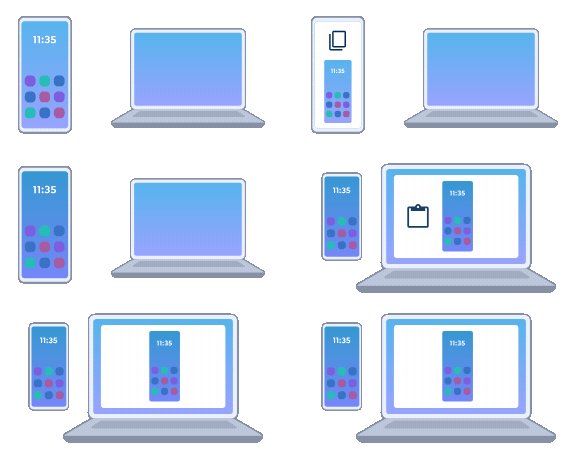
- Pair PC with phone or tablet.
On your phone or tablet, open Smart Connect and touch

Or from the Smart Connect dashboard, tap
- On your PC, open Smart Connect, select the paired device, touch
To paste something that was previously copied to the clipboard, tap or click on it in the Smart clipboard history, then paste it. Smart Connect keeps your last five clips for one hour.
To stop sharing the clipboard, from the Smart Connect dashboard on your phone, tap
If multiple devices are paired, stop sharing by unchecking the device you no longer want to share with.
Manage files from paired devices
Access mobile device files from PC
- Pair phone or tablet with PC.
- Open Smart Connect on your PC.
- Select a paired device, then tap Files.
- In File Explorer on your PC, browse, delete, or rename files on your mobile device, or transfer files between your mobile device and PC.
Tap
Access PC files from mobile device
- Pair phone or tablet with PC.
- Open Smart Connect on your PC, then go to Settings > General > Access PC files on Smart Connect devices and choose the folders you want to be accessible from paired devices.
- Open Smart Connect on your mobile device.
- Select the paired PC, then tap Files to access the PC files.
Tap