Set up dock
Install Android Auto
When you first connect your phone with the dock, follow the on-screen instructions to get the Android Auto app.
If Android Auto isn’t available in your area, you can download driving apps from other sources to use while your phone is docked.
Launch car mode
Some driving apps, including Car Home Ultra, Automate, and Drive Mode, can automatically start when you dock your phone.
To allow driving apps to auto-launch when connected to dock:
- Connect phone with dock.
- Go to Settings > Moto Mods.
- Turn on Launch car mode.
If you don’t want apps to auto-launch when connecting to the dock, turn off Launch car mode.
You can also use the Android Auto app to control which Bluetooth devices start driving apps automatically. Disconnecting a Bluetooth device will exit Android Auto.
Connect phone to car’s audio system
Play music, podcasts and more over your car’s stereo. Use either Bluetooth or 3.5mm audio depending on car compatibility.
Connect the 3.5 mm audio output on the dock with your vehicle’s receiver AUX port.
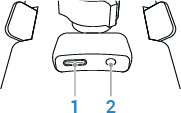
If your car supports Bluetooth, Android Auto can use the car’s Bluetooth connections for calling and music/media playback.
Charge phone while docked
Connect to a charger to keep the screen on while using Android Auto or other driving app.
For fast charging, use a USB-C cable to connect the USB-C port on the dock with a USB-C vehicle power adaptor (sold separately) in the car for up to 15W TurboPower charging (5V / 3.0A).