Set it up
Attach printer
- Remove your phone case if you use one.
- Make sure the connectors are clean and dry.
Align sides of your phone with sides of the printer until they snap together.
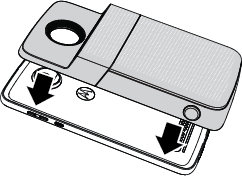
When connected, you feel a vibration, see a message on your screen, and hear a sound.
Remove printer
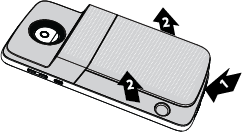
To remove your Insta-Share Printer, lift up from the bottom notch.
Charge
Use the charger provided with your phone to charge your Insta-Share Printer. Don’t use other chargers with a USB-C connector, which can slow charge speed, and avoid incompatible USB-B (micro USB) chargers and uncertified adapters and cables, which may damage your device.
To charge, do one of the following:
For fastest charge, connect your printer to a power outlet with a USB-C cable.

- To charge your phone and printer simultaneously, attach printer to phone, then charge your phone.
Check charge level
Press the battery check button to check the charge level. The LEDs indicate the charge level.
You can print about 20 photos if printer is fully charged.
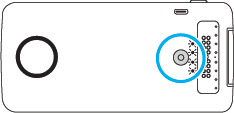
| Lights on | Meaning |
|---|---|
| 1 | 0-24% charged |
| 2 | 25-49% charged |
| 3 | 50-74% charged |
| 4 | 75-100% charged |
Load paper
Use only Polaroid 2x3” Premium ZINK® Paper paper in your Insta-Share Printer. Polaroid PoGo paper or other brands of ZINK paper may not print correctly with Insta-Share Printer.

Buy paper online from any authorized Polaroid retailer, or through the Polaroid Insta-Share app.
To load paper:
Press printer tray cover down and slide it partially off, then lift it off.
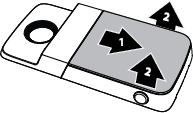
Insert blue sheet with the barcode side facing down into printer tray.
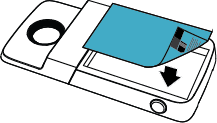
The blue sheet cleans and sets up the printer when you print the first photo after loading the printer. Each time you open a pack of paper, load the blue sheet that came with that pack (don’t reuse blue sheets).
Load up to 10 sheets of white photo paper with the ZINK logo facing down (shiny side up).
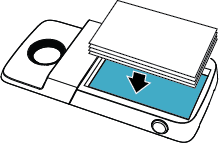 NoteBecause ZINK paper is heat-activated, protect it from heat and moisture by leaving the paper in the foil pack until you’re ready to load it into your printer tray.
- Replace cover.
Get Insta-Share Printer app
If you didn’t install the Insta-Share Printer app when setting up the printer, you can get it anytime from Play Store.