Take photos and videos
The Hasselblad True Zoom works with most camera apps. This help describes the Moto Camera app provided with your phone.
Take photos
For a tutorial about useful photo features, swipe right on the viewfinder screen, scroll up, then touch Quick tutorial.
To take a photo:
- Twist your wrist twice. Or, press the Power button to turn on the Hasselblad True Zoom.
Frame your subject:
- To zoom, turn zoom dial.
- To change the focus location, drag the focus ring.
To change the exposure, slide the control on the focus ring to lighten or darken the shot. To lock your settings for the session, touch & hold the focus ring.

- Press the shutter button halfway until the focus ring turns green and a lock icon
 appears.
Press shutter button to take photo.
To continuously shoot photos, hold down the shutter button.
- Swipe left to view your photos.
Adjust basic photo settings
You can access frequently-used settings from the viewfinder screen while using your Hasselblad True Zoom. Different options are available while using your phone’s rear camera.
Switch camera mode.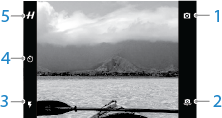

Automatic mode. 
Professional mode. Control all camera settings manually. 
Panorama mode. Take a wide-angle photo. Follow the on-screen guide to slowly pan while taking the photo. 
Record video.  to switch between Hasselblad True Zoom and front phone camera.
 to switch flash mode.
 to set timer to 3 or 10 seconds.
 to select a Hasselblad mode or scene, including a mode for saving Raw files. Raw files contain the complete (lossless) data from the camera’s sensor.
Adjust advanced photo settings
To refine settings for taking photos:
- Frame your subject.
- Touch , then touch to use Manual.
- Touch an icon to adjust an individual setting or touch
 .
. Drag an icon to adjust its setting:

Manual focus 
White balance 
Shutter speed 
ISO, the camera's sensitivity to light. 
Exposure Do any of the following:
- To return the settings on the screen to auto, touch
 .
. - To close settings, touch
 .
. - To take the photo, press the shutter.
- To return the settings on the screen to auto, touch
Adjust camera settings
Swipe right to change these general camera settings:
- To turn on shutter sound, slide Shutter sound on.
- To change where photos are stored, touch Storage. The SD card option is available only if a removable storage card is installed in your phone.
- To twist your wrist twice to open the camera, even when it is off, or to switch between front and back cameras, slide Quick capture on.
- To save geographic location with photos, slide Save location on.
- To set the photo size (MP) and aspect ratio, touch Photo size (rear).
- To set the video resolution, touch Video size (rear).
- To change where you touch to take a photo, touch Shutter type.
- To change how long photos are displayed after taking a photo, touch Post capture review. To review photos anytime, swipe left on the viewfinder.
- To switch from optical zoom to digital zoom, slide Use digital zoom on. Optical zoom typically produces better photos, but digital zoom can be useful for cropping photos as you shoot them.
Use other apps
Use your Hasselblad True Zoom with any app you’d normally use your phone’s camera, such as Facebook live streaming (with 1080p video), Snapchat, and more.