Insert or remove SIM and SD cards
About the SD card
Your phone supports an optional microSD card up to 128 GB.
The type to buy depends on how you'll format the card:
Portable storage (can use card in different devices): A Class 2, 4, or 6 card is sufficient.
Internal storage (card used only by phone): Use a high speed card such as UHS-1 type for best performance. Class 2, 4, or 6 cards are slower than your phone’s internal storage, so using them for internal storage would slow your phone's performance.
Learn more about the differences between portable storage and internal storage.
Insert or replace cards
- If you want to remove the SD card, eject it first.
Insert the SIM tool into the tray hole and gently push to pop it out.
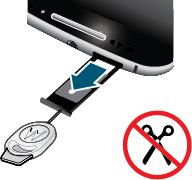
-
Insert or remove the cards as needed.
To use an SD card and a SIM card:
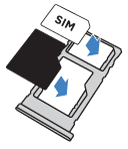
Or, to use two physical SIM cards (not available on all models):

To see if your phone supports two physical SIM cards, go to Settings > About phone > SIM status. If you see SIM Slot 1 and SIM Slot 2, then you can use two physical SIMs in your phone.
Push the tray back into the phone.

- If you inserted an SD card, format it now.
If you inserted two SIMs, you'll receive a notification to set them up. Swipe the notification down and tap it to manage dual SIMs. If you see 
Fix an issue
What type of issue do you have?