Control access to your mic and camera
Block mic or camera from app in use
Any time an app uses your mic or camera, you’ll see the privacy indicator in the status bar.
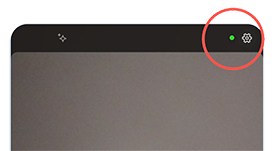
When you see the privacy indicator:
- Swipe the status bar down and tap


To block that app from using it:
- Tap

- Tap Microphone > Don't allow or Camera > Don't allow.
- Tap
Block/unblock for all apps
To quickly block and unblock access to your mic or camera for all apps:
Open quick settings and tap


None of the apps on your phone can use it.
- When you're ready to use the microphone or camera again, change