Use one-handed mode
Want to use one thumb to navigate your phone? Turn on One-handed mode.
This mode is only available if you're using Gesture navigation.
Set it up
- Go to Settings > Gestures.
- Tap One-handed mode and turn it on

Choose what should happen when you swipe down:
- To move the top of the screen into reach of your thumb, select Pull screen into reach.
- To see your notifications and quick settings, touch Show notifications.
- To add

Use it
Move top of screen down where your thumb can reach
Swipe down near the bottom edge of the screen. Or tap
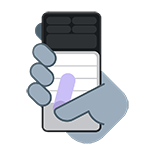
To exit this view:
- Swipe up from the bottom of the screen
- Tap anywhere above the app
- Tap
See your notifications and quick settings
To see notifications and quick settings, swipe down from the bottom edge of the phone once or tap
To see all quick settings, swipe down from the bottom edge of the phone twice or tap
Turn it off or remove
If you want to remove 
To turn off the gesture and remove
- Go to Settings > Gestures.
- Tap One-handed mode and turn it off