Insert or remove the SIM card
Your phone might support using an eSIM (embedded SIM card), in addition to the physical SIM card. Contact your carrier for details.
Set up eSIM
If your carrier provided you with an eSIM:
- If you don't have a network connection, connect to Wi-Fi.
- Go to Settings > Network & Internet > SIM preferences.
- Tap the option to download and set up an eSIM, then follow the on-screen instructions.
Insert or remove physical card
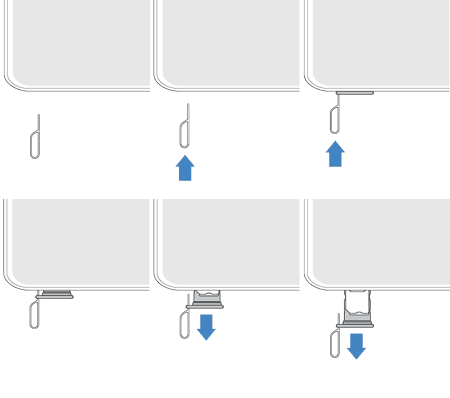
Insert the SIM tool into the tray hole and gently push to pop it out.
Insert (gold contacts up) or remove the card.
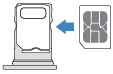
If you're using two SIMs, turn the tray over. Then insert (gold contacts up) or remove that card.

To see if your phone supports two physical SIM cards, go to Settings > About phone > SIM card status. If you see SIM status (sim slot 1) and SIM status (sim slot 2), then you can use two physical SIMs in your phone.
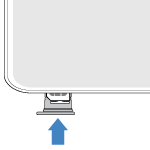
Push the tray back into the phone.

Erase eSIM
You may need to erase your eSIM:
- When you transfer the eSIM number to another phone
- If you're giving the phone to someone else or trading it in
When you erase an eSIM, you remove the following capabilities from the phone:
- Calling
- Mobile data usage
- Messaging
Erasing the eSIM does not cancel your mobile data services. To cancel your services, contact your carrier.
To erase an eSIM:
- Go to Settings > System > Reset options.
- Tap Erase eSIMs > Erase.
To restore an eSIM that you erased, contact your carrier.
Fix an issue
If you're having problems, try these troubleshooting steps.