Arrange apps and control icon's look
Choose where to find apps: app tray or home screen
The app tray holds all of your installed apps. Swipe up from the bottom of the home screen to open the tray. This simplifies your home screen, showing only apps you choose to add as shortcuts.

To see all apps on your home screen instead, you can remove the app tray.

You can switch at any time.
- Touch & hold a blank space on your home screen.
Tap
 Home settings > App organization and then:
- To see all apps on your home screen, tap Home screen.
- To see all apps in the app tray, tap App tray.
- Tap
 to see more customizations, described below.
If you're using App tray
In Home settings, tap App organization > App tray to make these customizations:
- Turn on/off suggested apps at the top of the list and bottom of the home screen.
- If you don’t want the app’s icon added to your home screen when you install a new app, turn Add app icons to Home screen off
 . The icon is only added to the app tray.
If you're using Home screen
In Home settings, tap App organization > Home screen to make these customizations:
To be able to position icons anywhere on the home screen, tap Manual placement.
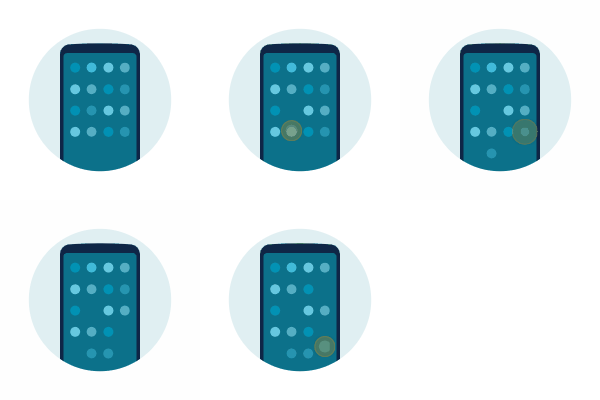
To have icons move automatically to fill empty spaces, tap Auto-fill.

Adjust icon size, color, names
You can make the app icons on your home screen and in the app tray larger or smaller. You can also remove or expand the names below the icon.
- Touch & hold a blank space on your home screen.
- Tap Home settings.
Adjust settings:
- To make the icons smaller or larger, tap Icon size and move the slider to choose a size.
- To see icons in a monochromatic color scheme based on your wallpaper, turn Themed icons on.
- To remove the names below the icons, tap App & widget label > Don't show.
- To restore the names below the icons, tap App & widget label > 2 rows (full names) or 1 row (short names).
Turn notification dots or numbers on/off
You can control whether app icons show dots to alert you about unread notifications.

- Touch & hold a blank space on your home screen.
- Tap Home settings.
- Tap App icon badges.
Select Numbered or Dot.
Or, to turn off dots and numbers for all apps, select No badge.