Open, close, switch apps
Open and close apps
To open an app, tap its icon on the home screen, or swipe up from the bottom of your home screen to open the app tray, then tap the app.
To leave an app and go to your home screen, just swipe up from the bottom of the screen.
You don't need to close apps. Android manages the memory and battery that apps use, so you don't need to worry about leaving apps open.
To close one app, drag up from the bottom of the screen, hold, then let go. In your recent apps, swipe up on the app.
To close all apps, drag up from the bottom of the screen, hold, then let go. In your recent apps, swipe right until you see the start of the list, then tap Clear all. (You can prevent certain apps from being cleared.)
Open apps from taskbar
The task bar lets you to open other apps when you’re using an app:
- To open an app, tap its icon.
- To open an app next to the currently opened app, touch & hold the new app's icon, then tap Split screen.
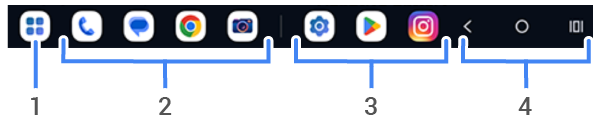
- Tap for a list of all your apps
- Apps in your Favorites tray (You can customize these.)
- Your recently used apps (Adjust settings if you don't want them on the taskbar.)
- Navigation icons (Shown only if you set System navigation to 3-button navigation.)
You can adjust settings to control how the task bar appears when you’re in an app:
- Always show it, at the bottom of the app's screen
- Hide it, unless you drag up from the navigation bar (Drag slowly and only go a short distance.)
Switch between open apps
To switch between recently used apps, swipe left or right at the bottom of the screen.
To see your list of recent apps, drag up from the bottom of the screen, hold, then let go:
- To see more apps, swipe left or right.
- To switch to an app, tap it in the list.
- To choose between opening the app in freeform or full screen, touch & hold its icon.
Clear recent apps
You can clear all apps from your list of recent apps. Or, you can prevent an app from being cleared from your recent apps when you tap Clear all to close all apps.
To remove all apps from the list:
- Drag up from the bottom of the screen, hold, then let go to see your list of recent apps.
- Tap Clear all.
To lock an app in the list:
- Drag up from the bottom of the screen, hold, then let go.
- On the app you want to keep in the list, tap

To unlock the app so it's removed when you tap Clear all:
- Drag up from the bottom of the screen, hold, then let go.
- On the app, tap

Get help using an app
Tap the search icon 
If you don’t find what you need, most apps include built-in help. To find it, open the app, tap 
