Adjust pen settings
For quick access to pen settings, tap the floating pen indicator to open the toolbar, then tap  Settings.
Customize pen options
Show or hide pen indicator
You can move the pen indicator by dragging it.
To temporarily remove the indicator, drag it to  . To see it again, reinsert and remove the pen.
To remove the indicator entirely, disable it at Settings > Pen > Preferences > Pen indicator.
If you want the indicator but don't see it when you remove the pen, enable it at Settings > Pen > Preferences > Pen indicator.
Change pen toolbar
Pin up to four tools or apps to the pen toolbar.
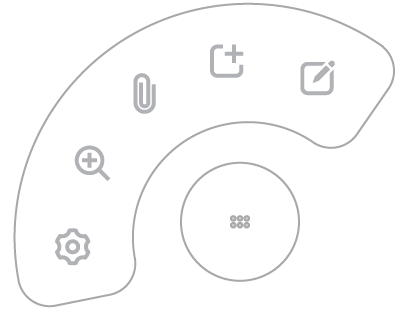
To add tools or apps to pen toolbar:
- On the pen toolbar, tap Settings then Toolbar.
- If the toolbar is full, remove an item.
- Tap feature or app to add.
To pin a note in the Notes app to the pen toolbar, open a note you want to pin, go to  and tap Pin to pen toolbar. This replaces any currently pinned note. To unpin a note from the toolbar, open the note, go to and tap Unpin from pen toolbar.
Change pen button actions
On the pen toolbar, tap Settings > Pen Controls to customize pen button actions for single or long presses.
Change what happens when you remove pen
Locked device: Set which note app opens when removing the pen. On the pen toolbar, tap Settings > When pen is removed. Enable Use Open when locked, then select an app.
Unlocked device: To show the toolbar when removing the pen, tap Settings > When pen is removed and turn on Open pen toolbar.
Track pen status
To prevent losing your pen, turn on these settings:
- Go to Settings > Smart Pen.
Adjust settings:
- To get notified when the pen is left out, tap Out-of-Case Reminders and enable Out-of-Case Reminders.
- To be able to find your pen with your phone, enable Last known location. Be sure to agree to location access at all times. Tap Last known location to view the map.