Use quick settings
Open quick settings
Settings you adjust frequently, like Bluetooth, are ‘quick settings’, easy to get to from any screen.
To see your first few quick settings, swipe down once from the top of the screen. This works both when the phone is closed (on the external display) and when the phone is open (on the Home screen).
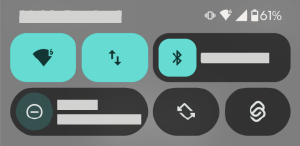
If the phone is open, swipe down again to:
- See all quick settings. You can swipe left for more.
- Tap


- Tap

You can change how you open quick settings and notifications.
Adjust quick settings
To adjust the screen brightness, slide 
To adjust other settings:
- Tap an icon to toggle the setting on/off.
- Touch and hold an icon to adjust related settings.
Find any phone setting
Open Settings:
- Swipe down from the top of any screen and tap
- Or, open the Settings app
- Swipe down from the top of any screen and tap
- Tap the search bar

Customise quick settings
Add, remove, move settings and labels
You can rearrange quick settings tiles, putting your most used settings at the top. You can also add or remove tiles and show or hide their labels.
- Open quick settings.
- Tap

Make your changes:
Drag tiles to rearrange them.
- To add new tiles, swipe up for a list of available tiles. Tap one to add it to your quick settings.
- To resize a tile, drag the edge of the tile. Make it smaller to hide its label, or larger to see the label.
To return quick settings to its original state, tap 
Pin/unpin the media player in Quick settings
When you leave a media app that allows you to listen in the background while you use other apps on your phone, playback switches to the media player which opens in quick settings and also appears on your lock screen for convenient control.
To let you continue listening from where you left off, the media player is pinned to its spot in quick settings. When it's pinned, you can't swipe it to close it.
To swipe the media player to close it and remove it from quick settings until you play something again, unpin it:
Open Quick settings, press and hold the media player, and touch
Or go to Settings > Sound & vibration > Media
- Turn Pin media player off

To pin the media player to its spot in quick settings:
Open quick settings, touch & hold the media player and tap
Or go to Settings > Sound & vibration > Media
- Turn Pin media player on

Apps that support background playback
While some apps like YouTube and YT Music require a premium paid subscription to play in the background and won't open in the media player using the free version, many media apps such as Spotify, Pandora and Amazon Music do support background playback in their free versions.
To find more apps, open Play store and
Change how you open quick settings and notifications
You can choose from two styles for quick settings: Classic style and Modern style.
Classic style groups quick settings and notifications together. Swipe down from the top of the screen:
- ONCE to view the first few quick settings and your notifications
- TWICE to view all quick settings
Modern style separates quick settings and notifications. Swipe down from the top of the screen, on one side:
- RIGHT side for quick settings
- LEFT side for notifications
To change the style:
- Go to Settings > Home and lock screen > Control centre.
- Choose Classic style or Modern style.
Show/hide quick settings and notifications on lock screen
- Go to Settings > Home and lock screen > Control centre.
To access quick settings and notifications from the lock screen, turn on Allow control centre access on lock screen.
Or to hide them from the lock screen, so you can only see them after unlocking the phone, turn it off