Set up sidebar for easy multitasking
Use the sidebar to open favourite apps and features in small, freeform windows that you can move and resize. Or, open them in full screen.
Turn on the sidebar
Go to Settings > Gestures.
Tap Sidebar and turn Use sidebar on

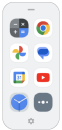
You'll see a sidebar on the right edge of your screen. Swipe it in to see a menu of apps that you can open.
Customise the sidebar
Change apps in the sidebar
On the sidebar, tap

Or, go to Settings > Gestures > Sidebar >
- Tap Customise the sidebar.
Customise the menu:
- To rearrange apps, touch and hold an app, then drag it.
- To remove an app, tap

- To add an app, tap it or mark its checkbox.
- Tap
Show recent apps in sidebar
You can show your two most recently-used apps in the sidebar. If there aren't any recent apps, you'll see two recommended apps instead.
On the sidebar, tap
Or, go to Settings > Gestures > Sidebar.
- Tap
- Turn Recent apps on sidebar on

About the Gametime sidebar
If you use Gametime, it has its own sidebar menu that opens apps. You set up the apps for that menu separately.