Change lock screen features
Use these options to control what content and features appear on your lock screen.
You can also control when your screen locks.
Turn Glance content off/on
Glance provides quick access to a wide variety of information without having to unlock your screen.
Turn Glance off
To remove this content from your lock screen:
Go to Settings > Home and lock screen > Lock screen > Glance.
Or, on your lock screen, tap the article title to open Glance, then tap


- Turn it off

Turn Glance on
- Go to Settings > Home and lock screen > Lock screen > Glance.
Turn it on

You'll see notifications on your lock screen as a chip. Tap the chip to browse notifications.
To see notifications as a list instead of chip, you must turn Glance off. Then, reset your notification style.
Customise the content and other settings
Go to Settings > Home and lock screen > Lock screen > Glance.
Change how notifications look and work
Turn off or limit notifications
To turn off notifications for your lock screen (sleep mode and awake mode), or to choose between showing some or all content:
- Go to Settings > Home and lock screen.
- Tap Lock screen > Privacy.
Select whether or not to show notifications.
If you show notifications but hide sensitive content, then you'll receive notifications for incoming emails or chats, but they won't include message details.
To turn off notifications in sleep mode but see them in awake mode:
- Go to Settings > Home and lock screen > Lock screen.
- Tap Sleep display, then turn Interact with notifications and music off
To have the screen stay black when notifications arrive:
- Go to Settings > Home and lock screen > Lock screen.
- Turn Wake screen for notification off
Change notification style
These are your choices for displaying notifications on your lock screen:

- Bubble: see notifications bundled by app. Tap a bubble to preview an app's notifications.
- Chip: see which apps have notifications. Tap the chip to see all notifications.
- List: see notifications as a list with details.
To change styles:
On the lock screen, touch & hold a blank space, then tap Customise lock screen.
Or go to Settings > Home and lock screen > Lock screen > Customise lock screen.
Tap the image representing your current notification style.
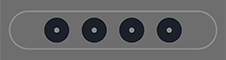
- Choose a new style.
Hide or show notification actions
If you don't want to see and use actions on notifications (like Reply, Archive):
- Go to Settings > Home and lock screen > Lock screen.
- Tap Sleep display.
- Turn Interact with notifications and music off
Choose whether unlocking is needed for replies
To prevent others from using your phone, when you use an action (like Reply) from a notification, you need to unlock the phone before replying.
To allow replies or other actions from notifications without unlocking:
- Go to Settings > Home and lock screen > Lock screen.
- Turn Safe reply off
Set gestures for turning the screen on/off
When the screen is off (black), you can always press the power button to see the lock screen. You can also use these other gestures.
Tap, move, or lift phone to show interactive sleep display
Set your phone to wake the sleep display with a tap, nudge or by lifting it for a quick glance while it's lying on a flat surface.
- Go to Settings > Home and lock screen > Lock screen.
- Tap Sleep display and turn on gestures to wake the display.
Tap twice to go directly to the lock screen
When your screen is off (dark), you can skip sleep mode and go directly to awake mode on the lock screen by tapping the screen twice. To set this up:
- Go to Settings > Home and lock screen > Lock screen.
- Tap Jump to lock screen and turn Use Jump to lock screen on
Tap twice to turn the screen off
To turn the screen off and lock the phone from any screen:
- Go to Settings > Home and lock screen > Lock screen.
- Tap Put the display to sleep and turn it on
Add message to lock screen
To add your name or a short message to your lock screen for anyone who finds your phone:
- Go to Settings > Home and lock screen > Lock screen.
- Tap Text on the lock screen.
- Type the text to display and tap Save.