Use the Clock and Weather widget
Add Moto Widget to Home screen
Put a clock on your home screen and get quick access to alarms, your calendar, and the weather.
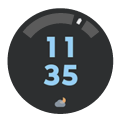
- Touch & hold the home screen.
- Tap Widgets.
Tap Moto Widget to view different styles of the widget to add:
- For a simple widget with few icons and a digital clock (not analogue), choose Clean.
- For a basic analogue clock with weather and your calendar, choose Classic. The outer ring shows the remaining battery.
- For a transparent widget that doesn't obstruct your wallpaper, with a choice of digital or analogue clocks and individual panels so you can swipe

- For a highly customisable widget that can show or hide date, time, weather, battery, alarms, fitness tracking and more depending on how you size the widget, choose Adapt.
- To see daily and hourly forecasts (no clock, calendar), choose Weather.
- Touch and hold the style you want, then drag it to your Home screen and release.
- Follow on-screen instructions to set up the widget.
Customise and use the widget
Resize it
Touch and hold the widget to show its frame, then drag a side. Some widgets show more information when you expand their size.
Move it
Touch and hold the widget, then drag it around your screen or to a new panel. Release to place it.
Change clock style
Your phone came with the Clean style of the Moto Widget, which only has a digital clock. To use an analogue clock, remove the widget (touch and hold, then drag it to Remove), then add a different style for the Moto Widget or add a different clock widget.
Quickly access alarms, calendar and weather
For alarms, tap the time to open the Alarm tab in the Clock app. Tap other tabs to use the timer or stopwatch. Learn more about alarms.
To open the Calendar, tap the current date. You can view or add events.
For weather information, tap Add cities or your current weather conditions in order to:
- Turn on location to track the weather wherever you are.
- Add cities, locations and regions to track their weather.
- View weather forecasts and other information.
- Adjust other weather settings, including notifications. In your weather app, look for on-screen instructions or tap


Add other clock and weather widgets
Other apps offer their own widgets you can add to your Home screen, in addition to the Moto Widget.
- Touch and hold the Home screen.
Tap Widgets, then:
- Tap Clock for a stopwatch or other types of time widgets.
- Tap your weather app for other types of weather widgets.
- Touch and hold the widget you want to add, then drag it to your Home screen and release.
- Follow on-screen instructions to customise the widget
For other widgets, 