Adjust volumes
Use Volume buttons
In-call audio. When you’re on a call, the Volume buttons control the volume of the other person.
Media. When you’re not on a call, the Volume buttons control media volume during playback or before you listen.
Captions for all speech. Tap to turn Live Caption on 

Phone ringtone, notification sounds, and alarms. To adjust these volumes, press a Volume button and then use this shortcut on your home screen:
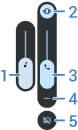
- Slide to adjust media volume.
- Tap to choose level for ringtone and notification sounds: on


- Slide to adjust call volume.
- Tap to see all volume controls (call, ring/notification, alarm, media).
- Tap to turn Live Caption on
Silence with Power & Volume buttons
To silence a ringing phone, press either the Power button or the Volume down button.
TipUse Do Not Disturb to silence all calls, messages, events, and reminders. Turn it on from quick settings, or schedule it to turn on automatically during certain times or during calendar events.
Pick up to silence
You can simply pick up your phone to silence incoming calls and alarms, and to turn vibration on.
To enable this gesture:
- Open the Phone app

- Tap

- Turn Flip To Silence on
