Arrange apps and control icon's look
Choose where to find apps: app tray or home screen
The app tray holds all of your installed apps. Swipe up from the bottom of the home screen to open the tray. This simplifies your home screen, showing only apps you choose to add as shortcuts.

To see all apps on your home screen instead, you can remove the app tray.

You can switch at any time.
- Touch & hold a blank space on your home screen.
Tap

- To see all apps on your home screen, tap Open.
- To see all apps in the app tray, tap App tray.
- Tap
If you’re using the app tray
You can
- Turn on/off suggested apps at the top of the list and bottom of the home screen.
- If you don’t want the app’s icon added to your home screen when you install a new app, turn Add app icons to Home screen off

If you're using Open to put all apps on the home screen
You can
To be able to position icons anywhere on the home screen, tap Free arrangements.
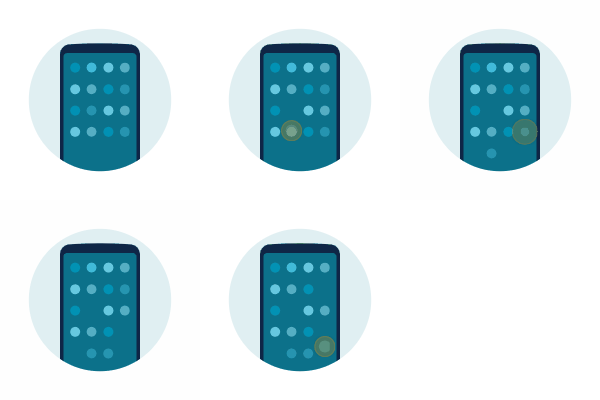
To have icons move automatically to fill empty spaces, tap Auto fill.

Change icon layout
You can choose a layout that shows more or fewer icons (rows and columns) on your home screen.
- Touch & hold a blank space on your home screen.
- Touch Home settings > Home screen layout.
- Select the dimensions you want, then tap Save.
Match home screen icons to wallpaper
Keep a consistent theme on your home screen with icons customized to match your wallpaper.
When you open the app tray, you’ll still see original app icons.
- Touch & hold a blank space on your home screen.
- Tap
- Turn Themed icons on

Show or hide notification dots
You can control whether app icons show dots to alert you about unread notifications.

- Touch & hold a blank space on your home screen.
- Tap
- Turn Notification dots on