Adjust volumes
Use Volume buttons
In-call audio. When you’re on a call, the Volume buttons control the volume of the other person.
Media. When you’re not on a call, the Volume buttons control media volume during playback or before you listen.
Captions for all speech. Tap to turn Live Caption on 

Phone ringtone, notification sounds, and alarms. To adjust these volumes, press a Volume button and then use this shortcut on your home screen:
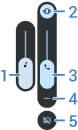
- Slide to adjust media volume.
- Tap to choose level for ringtone and notification sounds: on


- Slide to adjust call volume.
- Tap to see all volume controls (call, ring/notification, alarm, media).
- Tap to turn Live Caption on
Set app volumes and auto-mute apps
You can adjust the volume of each app.
Also, your phone can learn to automatically mute apps you usually mute. You can review and adjust the list of apps at any time.
Set it up
- Go to Settings > Sound & vibration.
- Tap Multi-volume and turn it on

Adjust app volumes
Press a Volume button to control volume of the app currently on screen, or use the sliders to adjust volumes of any apps with sound in use.

View and remove automatically muted apps
- Go to Settings > Sound & vibration > Multi-volume.
- Tap Auto mute to see the list of muted apps.
- To remove an app from the list, just unmute it in the app.
If you don’t want your phone to learn your usage patterns and automatically mute apps, go to Settings > Sound & vibration > Multi-volume and turn Auto mute off 
Silence with Power & Volume buttons
To silence a ringing phone, press either the Power button or the Volume down button.
To switch to vibrate at any time, press & hold the Power + Volume up buttons until you feel a vibration and see
To customize Power & Volume up:
- Go to Settings > System > Gestures.
Adjust settings:
- If you want these buttons to silence the phone instead of vibrating, tap Prevent ringing > Mute.
- If you don't want these buttons to control sound, turn Prevent ringing off
Pick up to silence
To silence an incoming call, place your phone face down on a flat surface.
To enable this gesture:
- Open the Phone app

- Tap

- Turn Flip To Silence on