Open, close, switch apps
Open and close apps
To open an app, tap its icon on the home screen, or swipe up from the bottom of your home screen to open the app tray, then tap the app.
To leave an app and go to your home screen, just swipe up from the bottom of the screen.
You don't need to close apps. Android manages the memory and battery that apps use, so you don't need to worry about leaving apps open.
To close one app, drag up from the bottom of the screen, hold, then let go. In your recent apps, swipe up on the app.
To close all apps, drag up from the bottom of the screen, hold, then let go. In your recent apps, swipe right until you see the start of the list, then tap Clear all.
Open app in freeform window
Swipe in from the edge of the phone for a menu of your favorite apps. (If you don't see the sidebar, turn it on.)

To open an app, swipe in from the edge of your phone where you see a translucent bar to open a menu of apps, then tap one to open it in a floating, freeform window.
To move the freeform app, touch & hold 
To resize the freeform app, drag a bottom corner diagonally:
Drag all the way down to open to full screen.
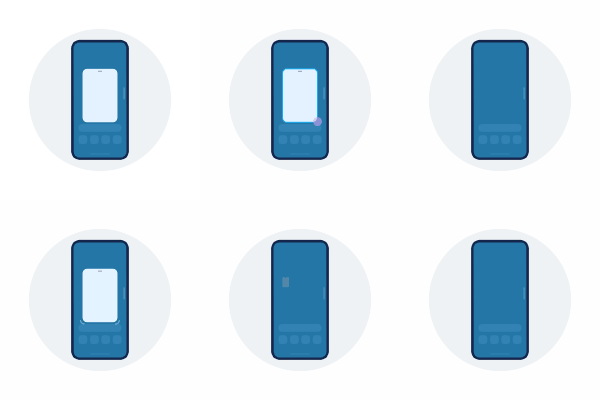
Drag all the way up for a floating, movable icon you can tap to reopen the app.

To close the app, tap 
To customize the sidebar, tap 
Switch between open apps
To switch between recently used apps, swipe left or right at the bottom of the screen.
To see your list of recent apps, drag up from the bottom of the screen, hold, then let go:
- To see more apps, swipe left or right.
- To switch to an app, tap it in the list.
- To choose between opening the app in freeform or full screen, touch & hold its icon.
Get help using an app
To search this help, tap 
If you don’t see what you’re looking for, check for app-specific help:
- Open the app.
- Tap


- Look for Help or Settings > Help.