Use quick settings
Open quick settings
Settings you adjust frequently, like Bluetooth, are ‘quick settings’, easy to get to from any screen.
To see your first few quick settings, swipe down once from the top of your screen.
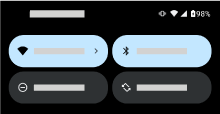
To see all quick settings, swipe down again.
Adjust quick settings
To adjust the screen brightness, slide 
To adjust other settings:
- Tap an icon to toggle the setting on/off.
- Touch and hold an icon to adjust related settings.
| Icon | Setting |
|---|---|
 | Internet: Wi-Fi |
 | Internet: Mobile data |
 | Bluetooth |
 | Do Not Disturb |
 | Auto-rotate |
 | Control compatible smart devices |
 | GPay (To learn more, read Google's help page.) |
 | Wi-Fi calling |
 | System update |
 | Dolby Atmos |
 | Torch |
 | Aeroplane mode |
 | Wi-Fi hotspot |
 | Quick Share |
 | GIF maker |
 | Alarm |
 | Battery Saver |
 | Screen cast |
 | Screen record |
 | Mic access |
 | Data Saver (Appears after you turn on Data Saver for the first time.) |
 | Night light |
 | Bedtime mode (Appears after you turn on Bedtime mode for the first time.) |
 | NFC |
 | Colour inversion (Appears after you turn on Colour inversion for the first time.) |
 | Extra dim (Appears after you turn on Extra dim for the first time.) |
Open all settings
To open the full list of all settings:
- Open quick settings and tap

- Or, open the Settings app

TipSearch the Settings app to find what you need quickly. Just tap 
Customise quick settings
Add, remove, rearrange quick settings
You can rearrange quick settings, putting your most-used at the top. You can also add or remove them.
- Open quick settings.
- Tap

Drag the tiles to rearrange. Or, swipe up to add new tiles.
To return quick settings to its original state, tap 