When your screen sleeps, battery-friendly Active Notifications notifications fade in and out, lighting only the pixels needed and showing notifications delivered since you last woke your screen. You can select the type of notifications to show, set them to show or not during the night, and limit content to control your privacy.
Active Notifications does not show notifications:
- At night, during hours you specify.
- When the phone is in your pocket or purse.
- When the phone is lying face down.
- When you are on a call.
Respond to Active Notifications notifications
From the lock screen, you can:
- Preview a notification. Touch & hold its icon.
-
Go directly to a notification. Drag your finger up to the target (then enter a PIN or password if using a screen lock).
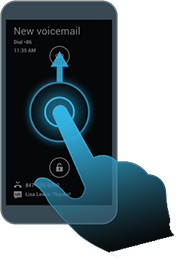
-
View all notifications. Drag your finger down (then enter a PIN or password if using a screen lock).
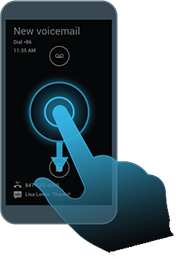
-
Stop notifications from flashing until the next one is delivered. Drag your finger to the right or left edge of the screen.
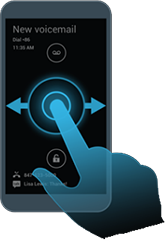
Change Active Notifications settings or turn it off
- Drag the status bar down with two fingers and touch
 Settings > Active Notifications.
 -
Do any of the following:
- To turn off Active Notifications, uncheck the box.
- To select the types of notifications sent, touch Manage notification types.
- To control privacy by hiding notification details when the screen is locked, touch More privacy.
- To adjust the hours notification delivery is off, next to Sleep at night, touch . If you want notifications to be delivered during night hours, uncheck the box.
verizon-en-us-en-us-3213-42