Here are the different ways you can use your fingers to control your phone.
Touch
Action: Press and lift with one finger.
Result: Open something (app or email) or choose something (checkbox, icon). It’s like clicking a mouse on a computer.
Touch & hold
Action: Press and wait before lifting one finger.
Result: Select something (app icon, text on a page) and see possible actions.
Try it: Touch & hold text on this page to see the copy feature.
Drag
Action: Touch & hold while moving. Use one finger for most actions. Sometimes, you can drag with two fingers for different results.
Result: Move elements on the screen; for example, change a toggle from ON to OFF.
Try it: Drag your status bar down with one finger to see options. Then, drag your status bar down with two fingers to see different options.
Swipe
Action: Quickly move one finger across the screen, without pausing when you first touch (so you don’t drag instead). Use one finger for most actions. Sometimes, you can swipe with two fingers for different results.
Result: Switch between home screens or between tabs in an app. Or, move quickly through a list.
Try it: Open the Phone app and swipe left/right to switch between tabs.
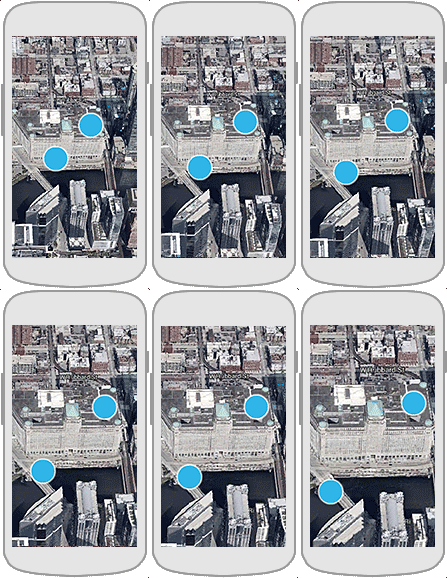
Pinch out
Action: Put two fingers on the screen and then drag them apart.
Result: Zoom in to see larger version of photos and maps. Or, open expandable notifications.
Try it: Open the Maps app and pinch out to zoom in on an area.
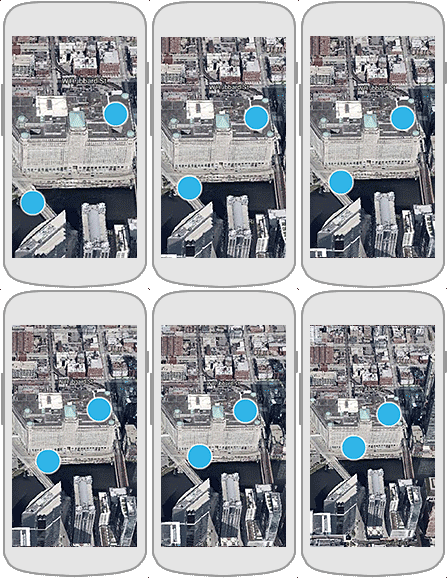
Pinch in
Action: Put two fingers on the screen, far apart, and then drag them together.
Result: Zoom out to see smaller version of photos or maps. Or, close expandable notifications.
global-en-us-en-us-3213-42