Use the stylus
Remove stylus
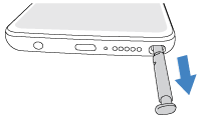
Press the end of the stylus in to release it, then slide it out of the phone.
If your screen was locked, Moto Note will open so you can quickly jot a note without unlocking. . You can also change what happens when you remove the stylus. Learn more.
To keep track of your stylus:
- Be sure to turn on Record last removal so you'll be able to see when and where you last removed the stylus.
- To get a notification if the stylus has been out and unused for a while, so you don’t forget it, turn on Removal reminder.
Use the stylus menu
When you remove the stylus from your unlocked phone, the stylus menu appears, giving you quick access to tools.
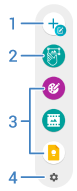
- Create a new note.
- Take a screenshot.
- Open the app by touching its shortcut. Touch & hold to change the shortcut.
- Change these shortcuts and adjust stylus settings.
If you tap anywhere on the screen, the stylus menu shrinks to a bubble 

If you don’t want the menu when you remove the stylus, you can turn the menu off.
If you want the stylus menu but don't see it or
Handwrite your text
In any app where you would type, you can handwrite with your stylus instead.
To handwrite:
- To open the keyboard, tap a text field where you want the cursor.
- To switch to the handwriting keyboard, tap

In the text entry box, start writing with your stylus (or finger) and watch the text appear at the cursor.
If you don't see the handwriting keyboard, turn it on:
- On the keyboard, tap

- Tap Languages and select your language.
Swipe right, if needed, and turn on Handwriting layout.
If you don't see it, then Handwriting is not available for your language.
- Tap Done.
To learn more, read Google's help.