Control data usage
Sometimes it's easy to exceed your data plan limit without realizing it. To avoid surprises, set a usage warning that notifies you when you’re close to your limit, and set a usage limit that turns off mobile data when the limit is reached. You can also restrict background data usage for certain data-intensive apps or all apps to save data.
Set a usage warning and usage limit
Go to Settings > Data usage.
TipOr, swipe the status bar down with two fingers and touch your carrier's name.To set the warning level, drag the right side of the orange warning bar up/down.
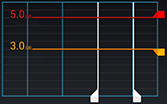
When your data usage reaches the specified level, you'll receive a notification.
To set the usage limit, check Set mobile data limit. Then drag the right side of the red limit bar up/down.
When your data usage reaches the specified level, your phone will turn off data usage.
Restrict background data
Even when you’re not using them, most apps sync data in the background for optimum performance. To minimize data usage, you can restrict background data usage for individual apps, or you can restrict all background data usage.
When you restrict background data, you will not receive app notifications from apps that typically sync in the background (like Email) until you open the app; then data syncs as usual.
To restrict background data usage for individual apps:
- Go to Settings > Data usage.
- Scroll down to see which apps are transferring data over the mobile network.
- Touch an app, then touch
 > Restrict background data.

To restrict background data usage for individual apps:
- Go to Settings > Data usage.
- Touch > Restrict background data.