Stay in control with Circles widget
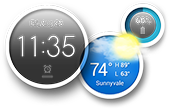
Be prepared for what’s ahead with the Circles widget, your control center for date and time, weather, battery status, and common notifications. Set an alarm from the time circle. Add cities to the weather circle. View battery status and access power-saving settings from the battery circle. Flip the time circle for quick control of media sharing apps, or flip the battery circle to set which notifications appear in the widget.
The widget always shows the time circle. To show or hide the other circles, touch  or
or  beside the widget.
Set alarm
- Touch the time and date circle.
Do one of the following:
- To use an existing alarm, slide its toggle to ON. Touch
 to view or edit ring options for that alarm.
 - To add a new alarm, touch and set the time and ring options.
- To use an existing alarm, slide its toggle to ON. Touch
- To control general alarm settings, like alarm volume and snooze duration, touch
 > Settings.
When an alarm is set,  shows in the time circle.
Delete alarm
In the alarm list, touch  next to the alarm you want to delete.
Add cities to weather circle
- In the weather circle, touch (if you don’t see it, flip the circle). Or touch the weather circle to open it .
- Touch ADD A CITY and search for a location. Then touch the city that you want to add. The cities display in the weather circle in the order listed here.
- To change the display order, touch ARRANGE CITIES and drag them into the order you want when you flip the weather circle.
Flip the weather circle for a quick view of each city; for more details on that city’s weather, touch the circle.
Remove a city
- Touch the weather circle to open it, then touch
 .
. - Touch
 next to the name of the city to remove it.
View and manage battery usage
Your battery status shows in the battery circle.
- To see how apps are using power and adjust settings for power-hungry apps, touch the battery circle (if you see , flip the circle first).
- To view details or adjust settings for individual apps, touch an app name.
- To access general phone settings (where you can toggle wireless settings OFF to save power, view data usage, and more), flip the circle and touch .