Insert and remove SIM and SD cards
You can remove and replace a nano SIM or optional microSD card.
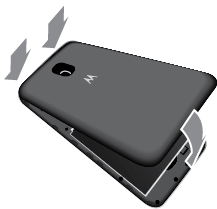
Remove back cover
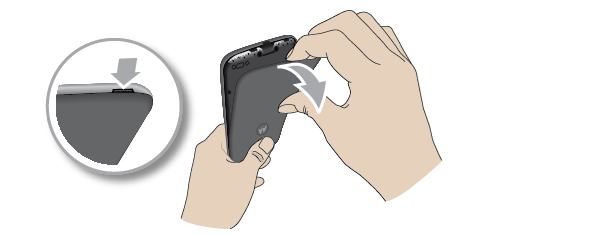
Turn your phone upside down, and put your fingernail in the notch on the bottom corner.
All options or references were filtered out.
Press your thumb into the center of the back cover and pry the cover off. Don’t be afraid to use a little muscle.
Replace SIM or SD card
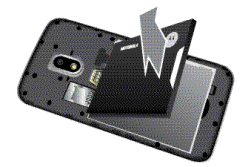
After removing the cover, remove the battery and then insert or remove cards as needed:
Remove the battery.
- All options or references were filtered out.
To insert a SIM, slide it into the SIM slot with gold contacts facing down.
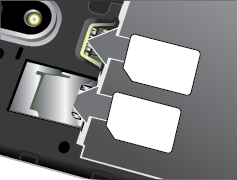
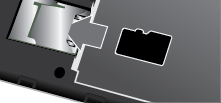
To insert an SD card, slide the SD card into the slot on top of the SIM.
When two SIMs are inserted, you see  at the top of the home screen. If you see
  , troubleshoot the issue.
Replace back cover
Put in the battery, and snap on the cover.
When two SIMs are inserted, you see at the top of the home screen. If you see , troubleshoot the issue.
Set up SD card
You'll need to choose one of two formats for your SD card: portable or extended internal. Need help deciding which format to use?
Portable storage
When you insert an SD card, it’s automatically set to be portable storage for media files, letting you easily swap the card and its content between devices.
Be sure to set your storage location within media apps, like Camera and Play Music.
Extended internal storage
Instead of using it as portable storage, you can set your SD card to be internal storage, extending your device storage for large applications, games, and their data.
To format your SD card as internal storage:
- Touch the SD card notification for the card you inserted.
- Touch
 > Settings > Format as internal.
 Follow the onscreen instructions.
Learn more about managing your SD card.