Adjust volumes
Use Volume buttons
In-call audio. When you're on a call, the Volume buttons control the volume of the other person.
Media. When you're not on a call, the Volume buttons control media volume during or before playback.
Phone ringtone, notification sounds and alarms. To adjust these volumes, press a Volume button and then use this shortcut on your Home screen:
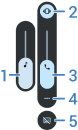
- Slide to adjust media volume.
- Tap to choose the level for the ringtone and notification sounds: on


- Slide to adjust call volume.
- Tap to see all volume controls (call, ring/notification, alarm, media).
Silence with Power and Volume buttons
To silence a ringing phone, press either the Power button or the Volume down button.
To switch to vibrate at any time, press and hold the power + Volume up buttons until you feel a vibration and see
To customise Power & Volume up:
- Go to Settings > System > Gestures.
Adjust settings:
- If you want these buttons to silence the phone instead of vibrating, tap Prevent ringing > Mute.
- If you don't want these buttons to control sound, turn Prevent ringing off

Flip to silence
You can place your phone face down on a flat surface to silence incoming calls and alarms, and to turn vibration on.
To enable this gesture:
- Open the Phone app

- Tap


Pick up to silence
To silence an incoming call, place your phone face down on a flat surface.
To enable this gesture:
- Open the Phone app
- Tap
- Turn Flip To Silence on