Insert and remove SIM and SD cards
About the SD card
Your phone supports an optional microSD card up to 512 GB.
The type to buy depends on how you'll format the card:
Portable storage (can use card in different devices): A Class 2, 4, or 6 card is sufficient.
Internal storage (card used only by phone): Use a high speed card such as UHS-1 type for best performance. Class 2, 4, or 6 cards are slower than your phone’s internal storage, so using them for internal storage would slow your phone's performance.
Learn more about the differences between portable storage and internal storage.
Remove back cover
Put your finger in the notch at the bottom corner.

Pry off the cover. Don’t be afraid to use a little muscle.

Insert or replace cards
- To insert an SD card:
Select a compatible SD card. Slide the card to insert it.

- To remove an SD card:
First, unmount the card. Then, slide the card to remove it.
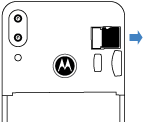
- To insert a SIM card:
Slide the SIM in, with gold contacts facing down. If you have a nano SIM, use the micro-SIM adapter included in the box to insert it in this slot.

If your phone supports dual SIMs, remove the battery and then slide the nano SIM in, with gold contacts facing down.

- To remove a SIM card:
Push the card from the edge of the slot, then pull to remove it.
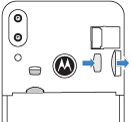
If your phone supports dual SIMs, remove the battery, then remove the nano SIM.

When two SIMs are inserted, you see  at the top of the home screen. If you see
  , troubleshoot the issue.
Replace back cover
- Line up the back cover over the fingerprint sensor.
Snap the cover on.

When two SIMs are inserted, you see at the top of the home screen. If you see , troubleshoot the issue.
Fix an issue
Select an issue to see troubleshooting steps.
- SIM card
- SD card
- Phone doesn't recognize card